
How To Fill SECCAP FORM 2026-27
STEP # 1: Open The Application Form
Click the link below to access the official SECCAP Online Application Portal and begin your Admission Process.
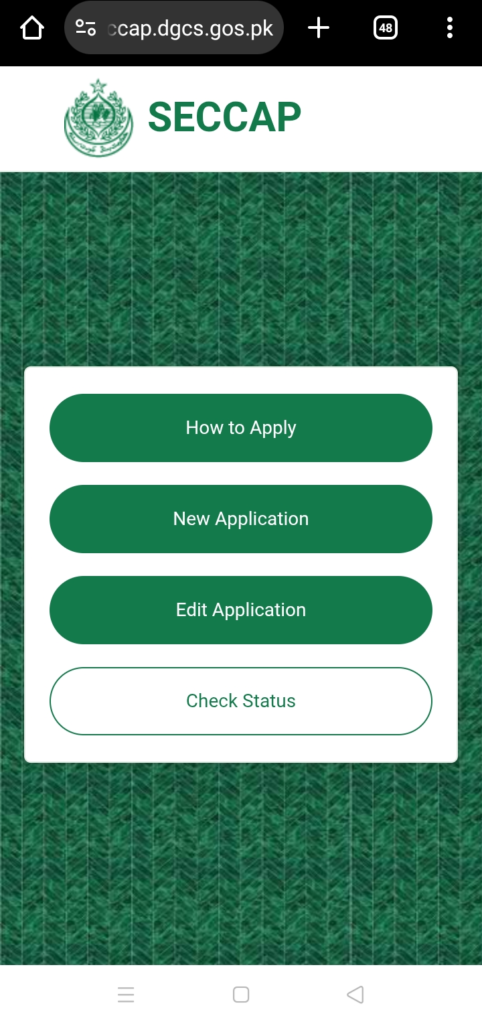
STEP # 2: Homepage
Once you are on the homepage, select the “Online Apply” option to proceed with your admission application.
(As shown in the image below.)

STEP # 3: New Application
On the next page, click on “New Application” to start a new admission form.
(Follow the option shown on the screen to continue.)
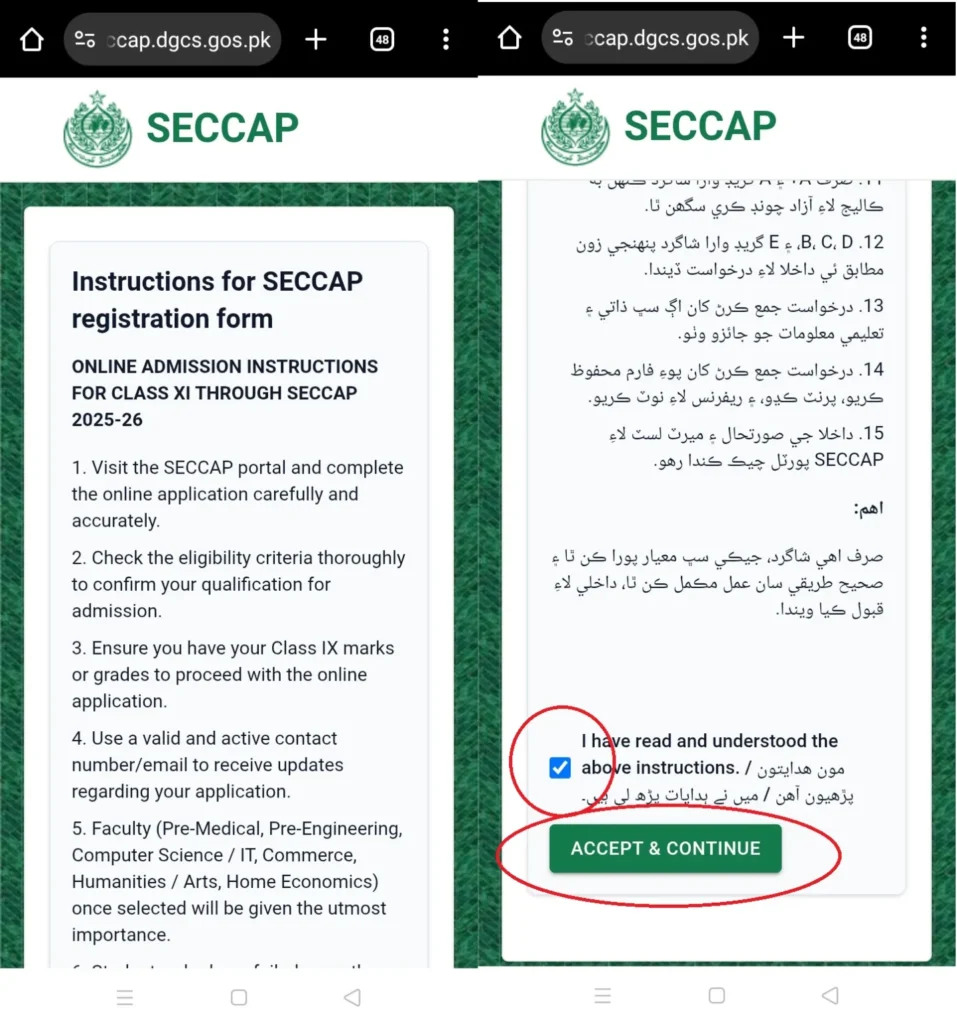
STEP # 4: Instructions Page
Carefully read all the instructions provided on the page. After reviewing them, scroll down to the bottom, check the confirmation box, and click “Save and Continue” to proceed.
(As shown in the image below.)
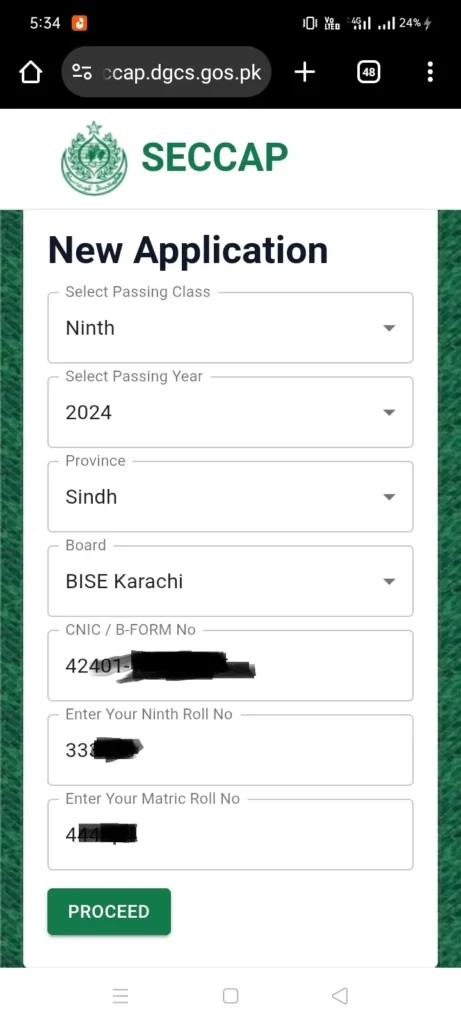
STEP # 5: Fill Out Your Basic Information
Fill in the required information carefully:
- Passing Class: Select the class based on your examination status.
- Passing Year: Choose the relevant passing year from the dropdown menu.
- Province: Select the province where you completed your Matric education.
- Board: Choose your educational board.
- CNIC/B-Form Number: Enter your CNIC or B-Form number correctly.
- 9th Class Roll Number: Provide your Ninth Class roll number.
- 10th Class Roll Number: Provide your Tenth Class roll number.
After entering all the required details, review the information and click “Proceed” to continue with your application.
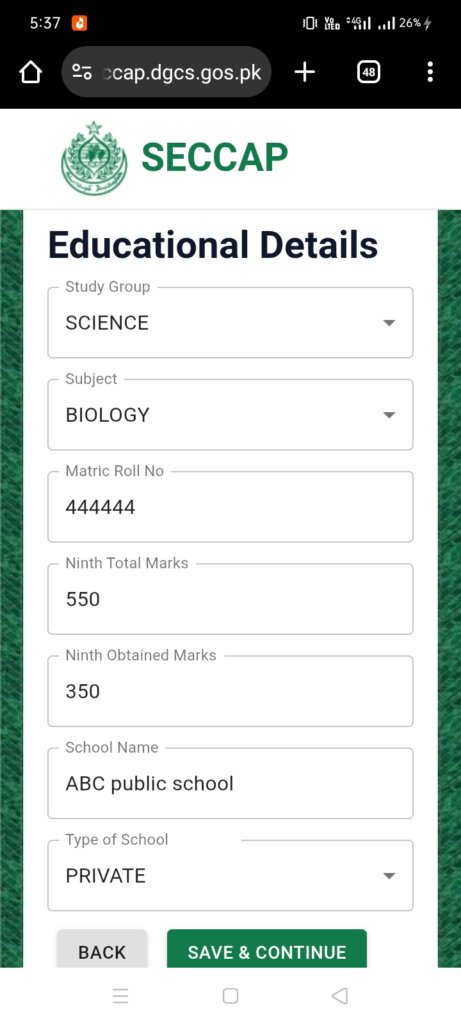
STEP # 6: Educational Details
Complete the following fields with accurate details:
- Study Group: Select the study group you completed in Matric.
- Subjects: Enter the subjects you studied in Matric.
- Matric Roll Number: Provide your Matric examination roll number.
- 9th Class Total Marks: Enter the total marks for your 9th class examination.
- 9th Class Obtained Marks: Enter the marks you secured in 9th class.
- School Name: Type the name of your school.
- School Type: Select whether your school was Government or Private.
After filling in all the required information, verify the details and proceed to the next step.
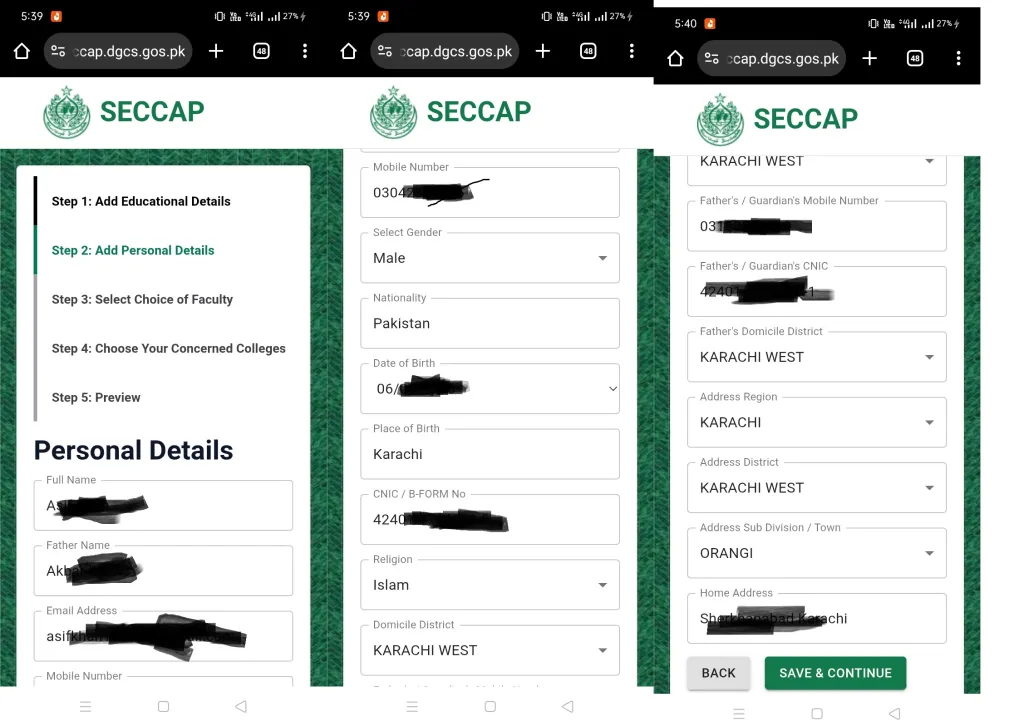
STEP # 7: Personal Information
Fill in the required personal details:
- Full Name: Enter your complete name as per your academic records.
- Father’s Name: Enter your father’s full name.
- Email Address: Provide a valid email address for communication.
- Mobile Number: Enter your active mobile phone number.
- Domicile District: Select your domicile district from the list.
- Residential Address: Enter your complete home address.
After completing all the fields, review the information carefully and click “Save and Continue” to proceed to the next step.
STEP # 9: Choice of Faculty
Complete the following admission-related details:
- Board: Select the educational board where you wish to apply for admission.
- Zone: Choose your respective area or admission zone.
- Faculty/Group: Select the study group you want to pursue, such as Pre-Medical, Pre-Engineering, Commerce, Computer Science, or Humanities.
The list of available colleges and programs will be displayed according to your academic eligibility and admission criteria. Review your selections carefully before proceeding to the next step.

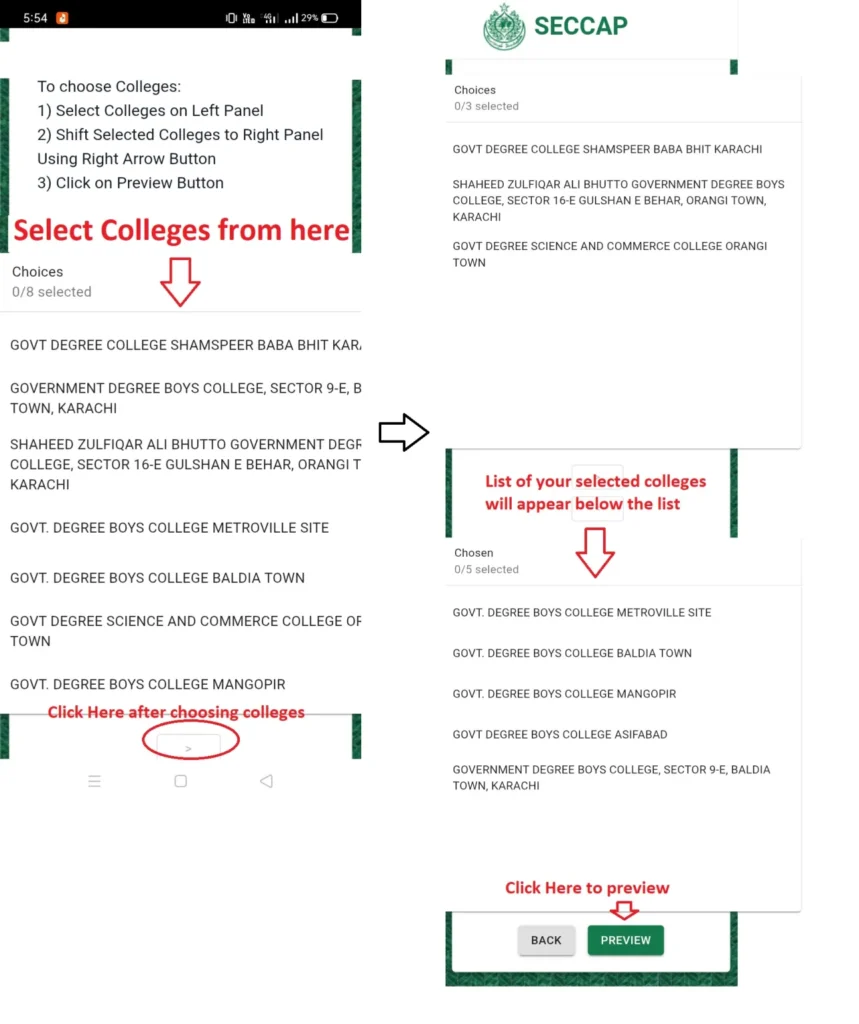
STEP # 10: Choose Colleges
Based on your academic eligibility, a list of available colleges will be displayed.
- Review the available colleges carefully before making your selection.
- It is recommended to watch the college selection guide video to better understand the selection process.
- Choose your preferred colleges from the list and click the right arrow (→) to add them to your application.
- Your selected colleges will appear in the section below for review.
- Arrange and verify your college preferences carefully.
Once you are satisfied with your selections, click “Preview” to review your application before final submission.
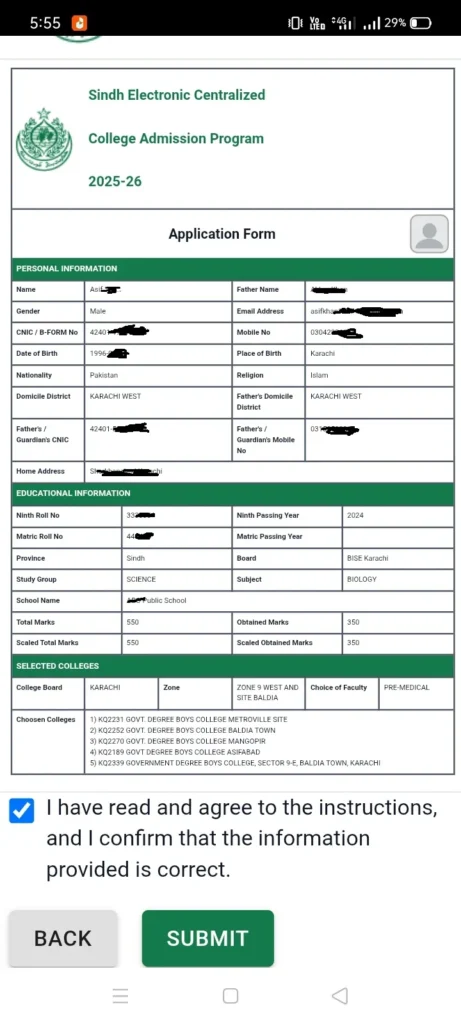
STEP # 11: Final Review & Submit
Before submitting, carefully review all the information entered in your application form.
- Check your personal, academic, and college preference details thoroughly.
- If you find any incorrect information, click “Back” and make the necessary corrections.
- Once you have verified that all details are accurate, select the confirmation checkbox.
- Click “Submit” to complete your application.
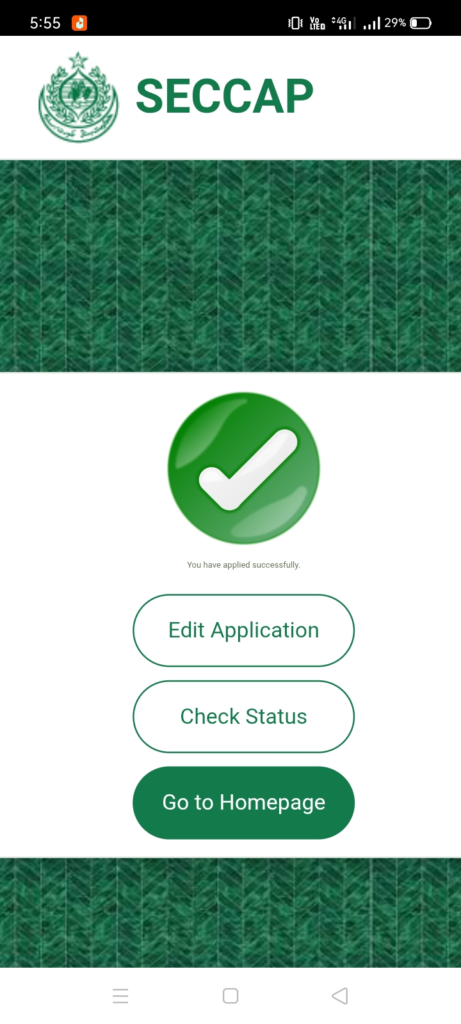
After successful submission, a confirmation message will appear on your screen indicating that your application has been submitted successfully.
Form Completion
- Your Form has been submitted successfully.